FBT SaaS Documentation
Everything you need to install, configure, and get the most out of the FBT SaaS Frequently Bought Together plugin for WooCommerce.
On this page
Overview
FBT SaaS connects your WooCommerce store to a cloud-based recommendation engine and automatically generates Frequently Bought Together (FBT) product recommendations based on your real customer purchase patterns — no manual rules needed.
1. Connect
Install the plugin, enter your FBT SaaS URL and connection token. WooCommerce API keys are auto-generated.
2. Sync
Trigger a sync. Your order history is sent to the FP-Growth algorithm, which finds products customers buy together.
3. Display
Recommendations are pushed back and shown as FBT widgets on product pages and the cart — automatically.
Requirements
Before installing, confirm your environment meets these minimum requirements.
| Requirement | Minimum Version | Notes |
|---|---|---|
| WordPress | 5.8 | Tested up to 6.7 |
| WooCommerce | 6.0 | Tested up to 9.4 · HPOS compatible |
| PHP | 7.4 | PHP 8.x recommended for performance |
| FBT SaaS Account | Free | Create at fbt.sidocode.com |
| WordPress REST API | — | Must be enabled and publicly accessible (not blocked by security plugins) |
| HTTPS | — | Strongly recommended for WooCommerce API authentication |
Installation
Choose the method that suits you.
Automatic Installation (Recommended)
- Log in to your WordPress admin dashboard.
- Go to Plugins → Add New.
- Search for
FBT SaaS Frequently Bought Together. - Click Install Now, then Activate.
- Navigate to WooCommerce → FBT SaaS to begin setup.
Manual Installation
- Download the plugin
.zipfile from WordPress.org. - In your WordPress admin, go to Plugins → Add New → Upload Plugin.
- Upload the
.zipfile and click Install Now. - Click Activate Plugin.
- Navigate to WooCommerce → FBT SaaS to begin setup.
First-Time Setup
After activation, follow these steps to get recommendations running on your store.
Create a free FBT SaaS account
Go to fbt.sidocode.com/dashboard and register. No credit card required.
Add a new store in your dashboard
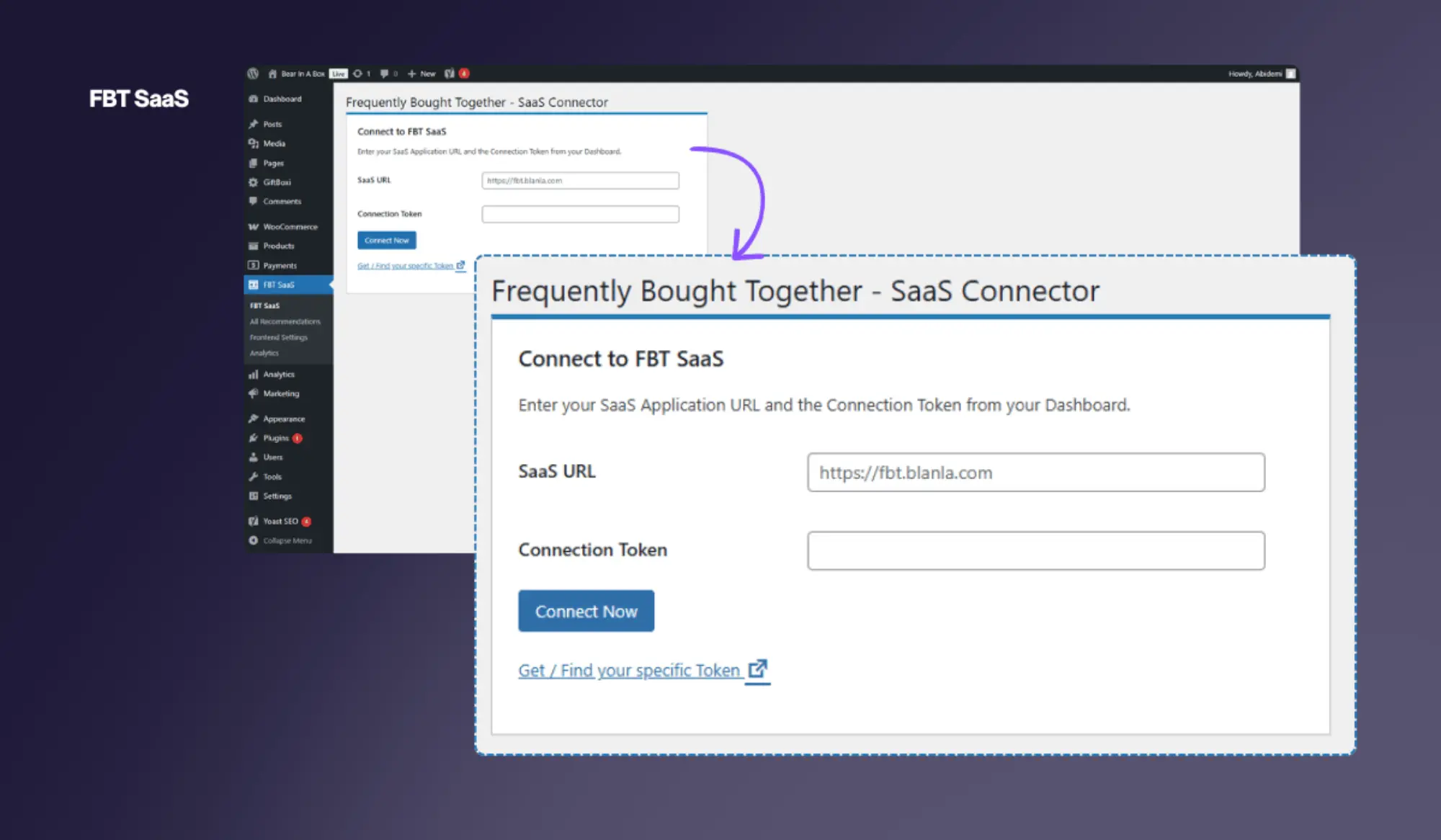
Click Add Store, enter a name for your store, and click Create. A unique connection token is generated — copy it.
Enter your details in the WordPress plugin
In WordPress admin, go to WooCommerce → FBT SaaS. Enter your FBT SaaS URL (https://fbt.sidocode.com) and paste your connection token. Click Connect Now.
WooCommerce API keys are auto-generated
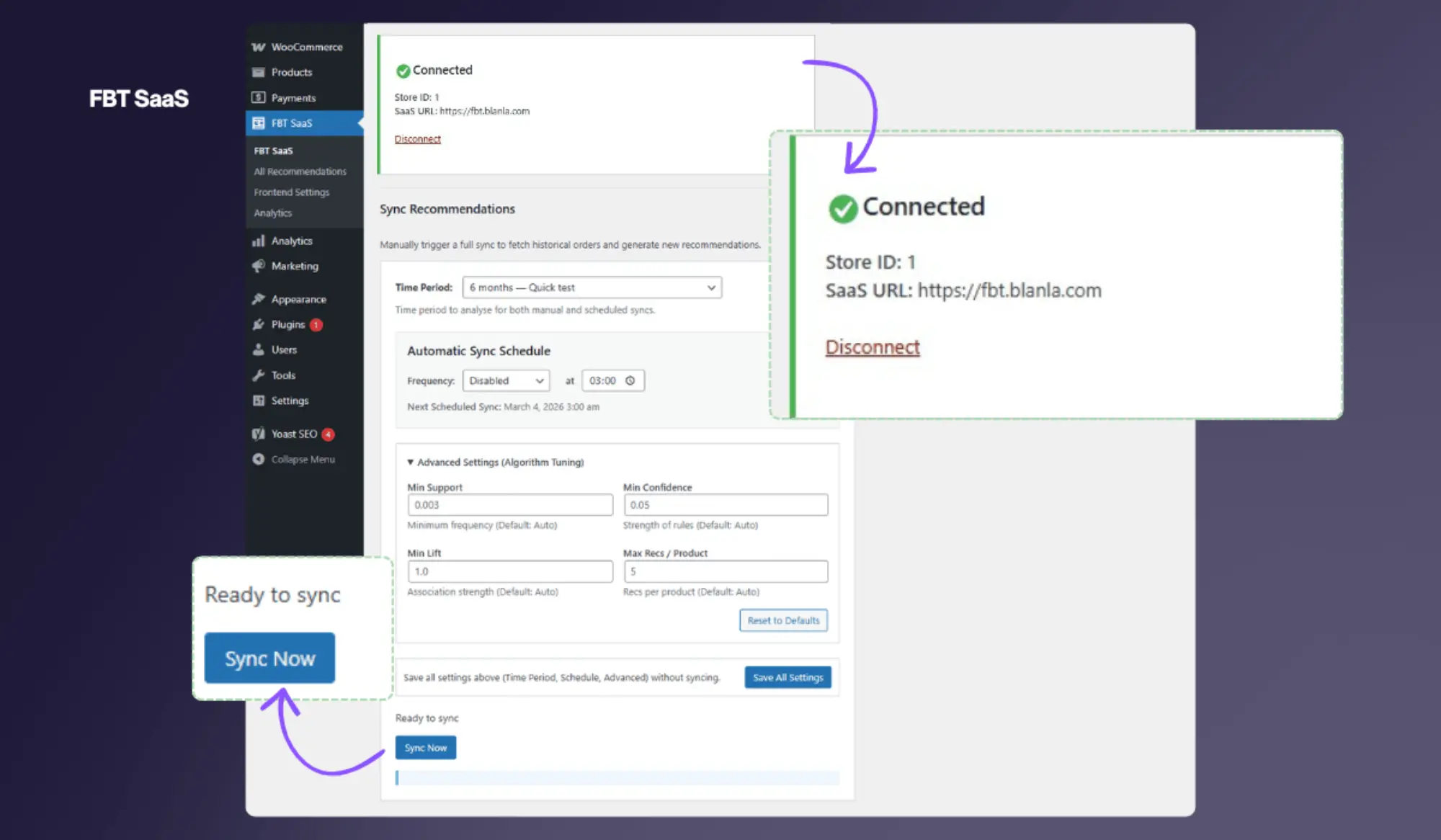
The plugin calls your store's WooCommerce REST API to create read/write API keys automatically. You will see a Connected status badge when successful.
Run your first sync
Select a time period (6 months is a good starting point), then click Start Sync. Recommendations will appear on your product pages automatically once the sync completes.
Connecting Your Store
Understanding how the plugin authenticates with the FBT SaaS service.
How the connection works
Authentication between your WordPress site and the FBT SaaS service uses a token-based system — no passwords are ever stored.
Connection Token
A unique secret generated in your FBT SaaS dashboard when you add a store. The plugin sends this once during the initial handshake to prove identity. It is stored in wp_options as fbt_connection_token.
WooCommerce API Keys
During the connection handshake, the plugin automatically creates a WooCommerce REST API key pair (read + write) named FBT SaaS Connector. These allow the FBT SaaS service to fetch orders and write recommendations back to your store.
Connection status
The top of the FBT SaaS admin page always shows the current connection status:
Running a Sync
A sync fetches your order history, runs the FP-Growth algorithm, and writes recommendations back to your store.
Manual sync
- Go to WooCommerce → FBT SaaS.
- Select your desired time period (6, 12, or 24 months).
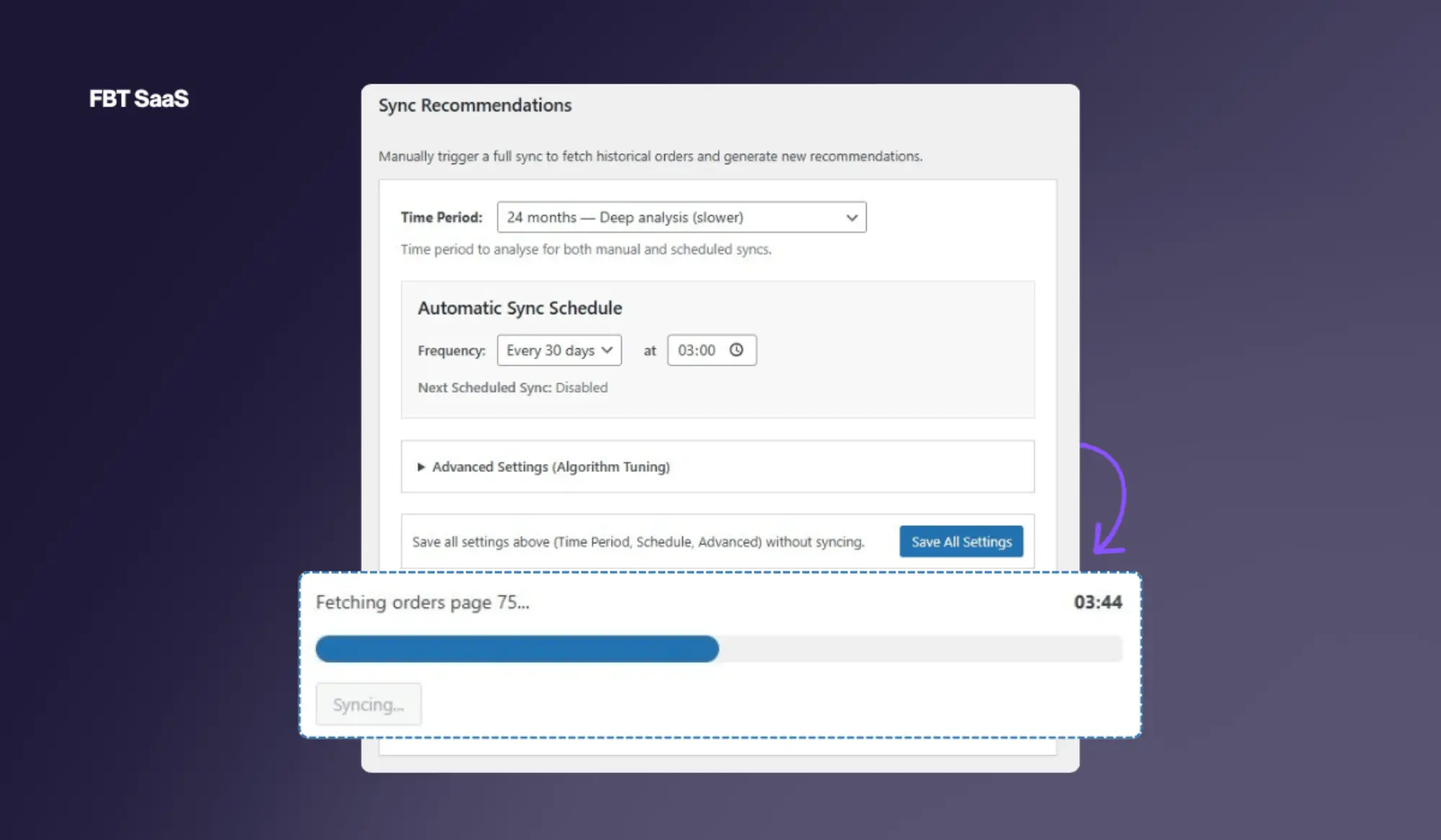
- Click Start Sync. A real-time progress bar and status messages show you exactly where the process is.
- When complete, the sync summary shows: orders processed, recommendations generated, recommendations saved.
- Your product pages will immediately serve the new recommendations (after the recommendation cache refreshes — see Cache).
Time period selection
| Period | Best for | Trade-off |
|---|---|---|
| 6 months | New stores, quick tests, fast-moving inventory | Fewer orders → less coverage |
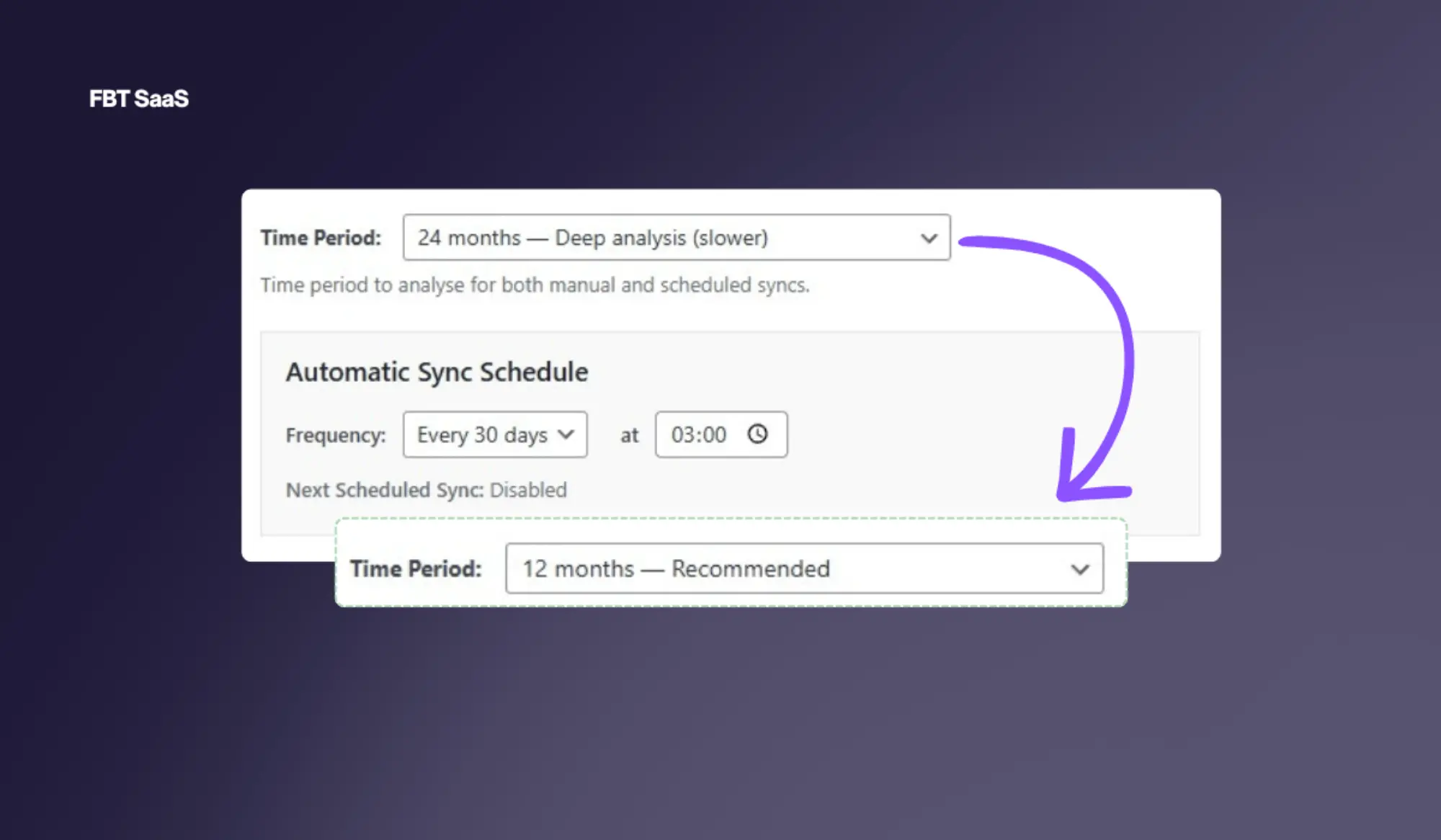
| 12 months | Recommended for most stores — balances accuracy and speed | Moderate sync time |
| 24 months | Large catalogues, seasonal products, high-SKU stores | Slowest sync · max allowed by GDPR retention |
Incremental sync
After the first full sync, subsequent syncs are incremental — the plugin only fetches orders newer than the last sync date, dramatically reducing sync time for large stores.
Automatic Sync Schedule
Set up automatic syncing so your recommendations stay fresh without manual intervention.
Under Sync Schedule in the plugin settings, you can configure:
Frequency
Choose how often to sync: every 7, 15, 30, or 60 days. For most stores, every 30 days is sufficient. High-volume stores with rapidly changing inventory can benefit from a weekly sync.
Time of Day
Choose the hour to run the sync (in your WordPress timezone). Schedule it during low-traffic hours to minimise any performance impact during processing.
wp-cron.php on schedule.
Algorithm Settings
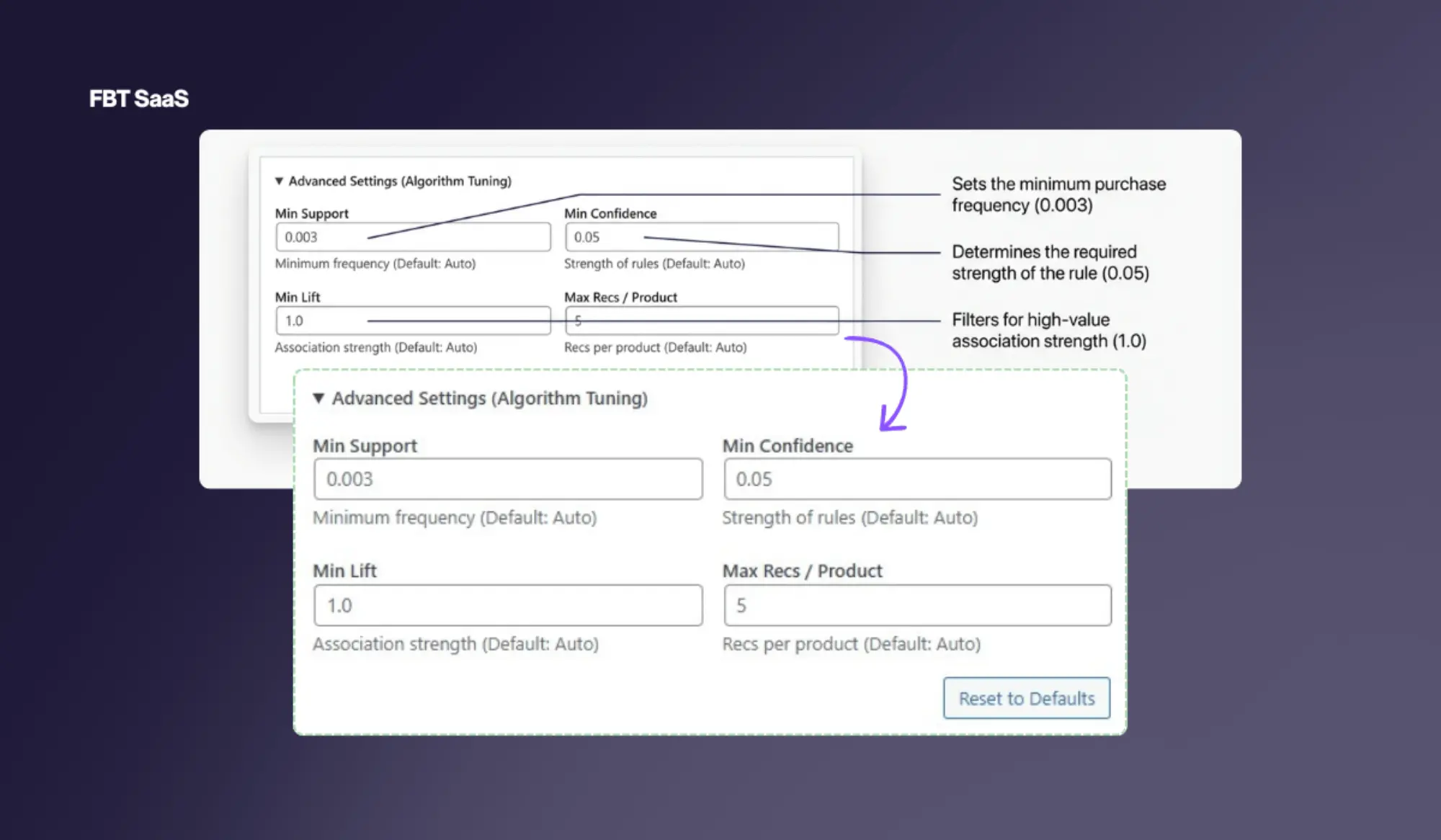
Fine-tune the FP-Growth algorithm parameters. These are advanced settings — the defaults work well for most stores.
Minimum Support
What it is: The minimum proportion of all transactions in which two products must appear together to form a recommendation pair.
Example: A support of 0.01 means a product pair must appear together in at least 1% of all orders in the selected time window.
Lower → more pairs found, potentially noisier. Higher → only very frequent pairs, fewer recommendations.
Minimum Confidence
What it is: The probability that a customer who buys Product A will also buy Product B. Confidence of 0.3 means 30% of orders containing A also contain B.
Example: If 100 orders contain a camera and 40 of those also contain a memory card, confidence = 0.4.
Recommended starting point: 0.1–0.3 for most stores.
Minimum Lift
What it is: How much more likely customers are to buy B with A compared to buying B independently. Lift > 1 means a positive association.
Example: A lift of 2.5 means customers who buy A are 2.5× more likely to also buy B than average customers.
A lift of 1.0 means no association. Keep minimum lift ≥ 1.0.
Recommendations per Product
How many recommended products to store per main product. This is the maximum generated — the frontend display setting controls how many are actually shown.
Default: 5. Increase for stores with large catalogues.
Association Strength Labels
After a sync, each recommendation is automatically assigned a strength label based on its combined metrics:
Product Page Widget
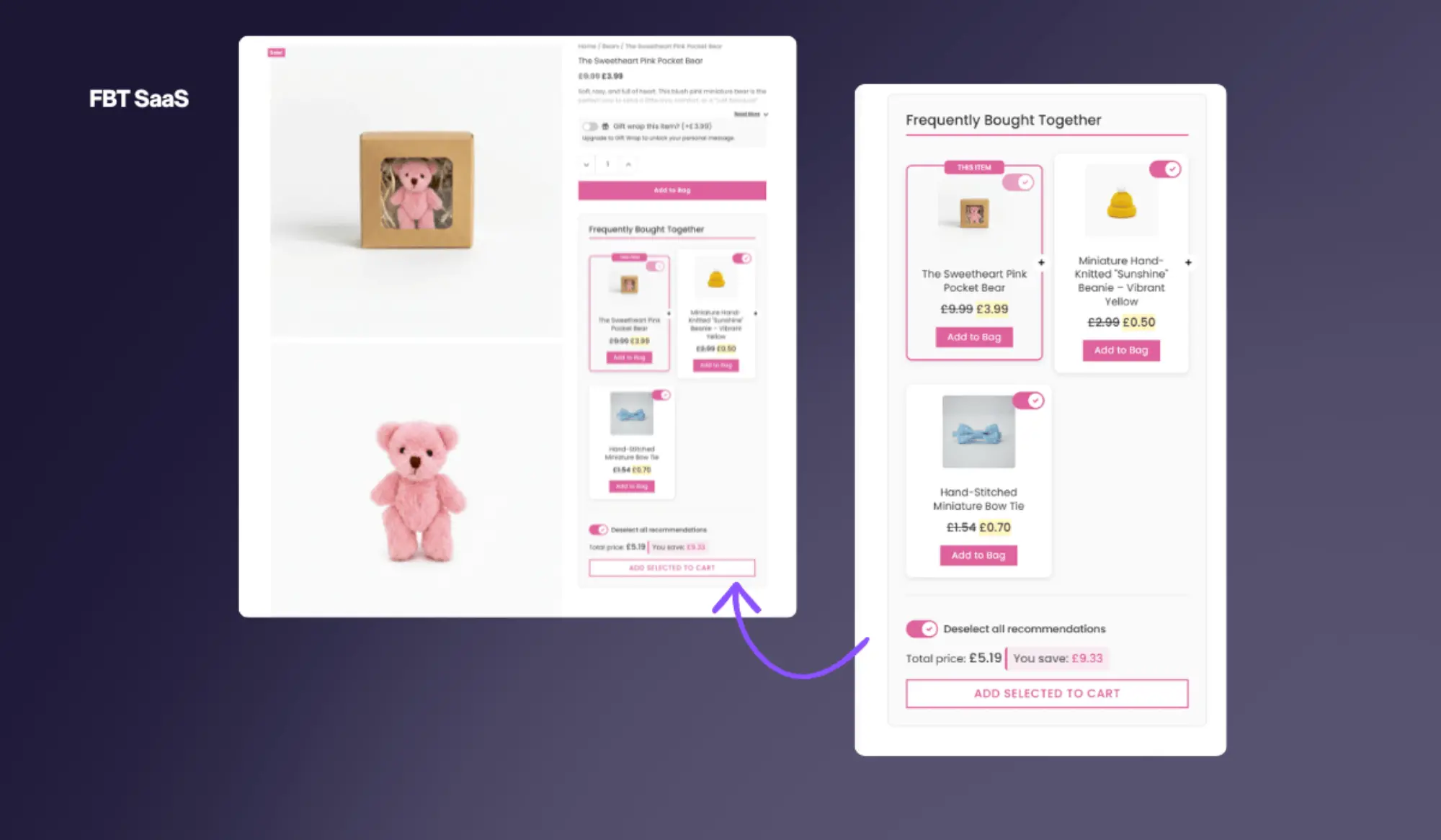
Configure how and where FBT recommendations are displayed on individual product pages.
Display positions
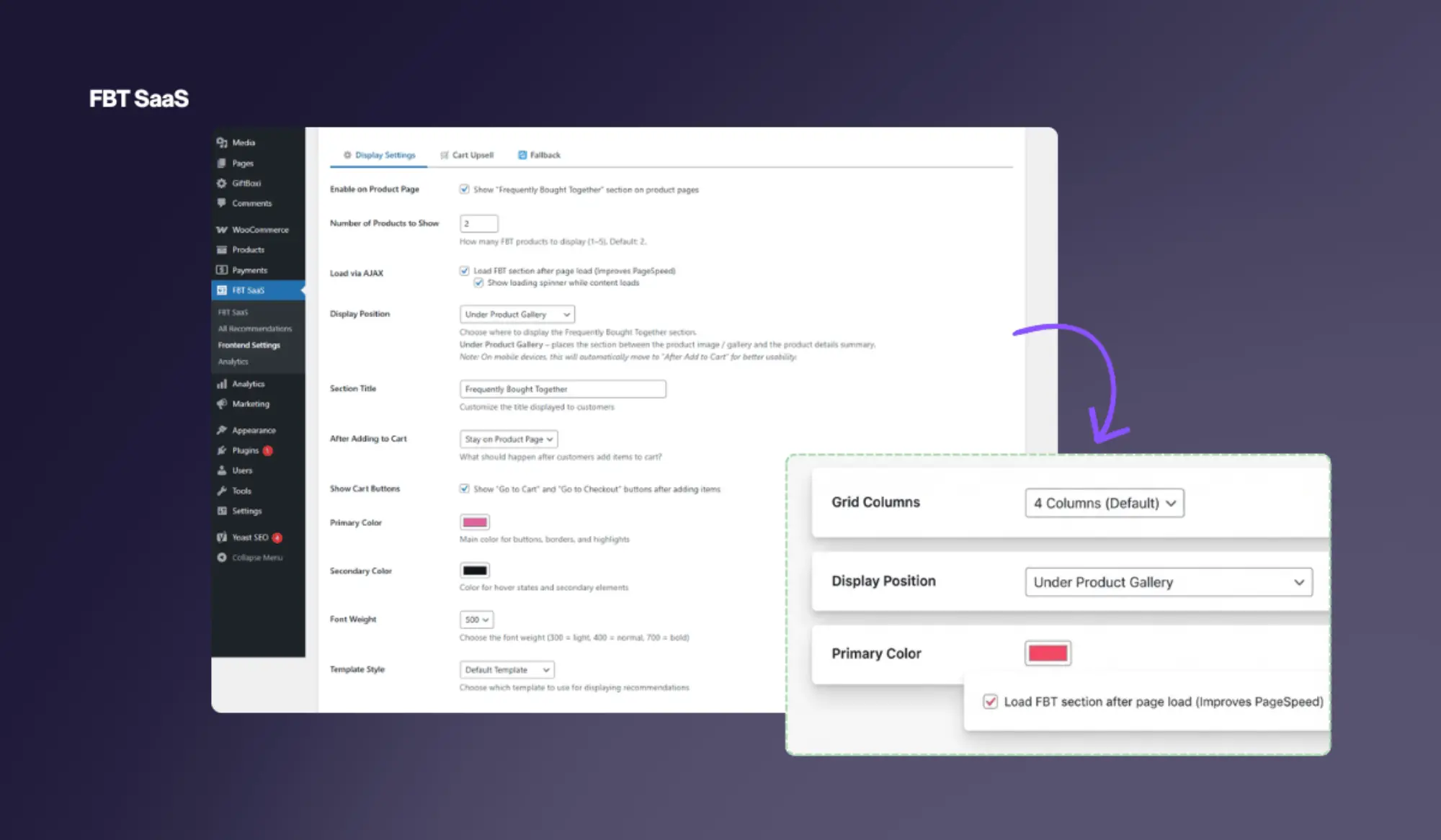
Go to WooCommerce → FBT SaaS → Frontend Settings to choose where the widget appears:
| Position | WooCommerce Hook | When to use |
|---|---|---|
| Before Add to Cart | woocommerce_before_add_to_cart_form | High-visibility, above the fold on many themes |
| After Add to Cart (default) | woocommerce_after_add_to_cart_form | Best for most stores — natural "what goes with this?" moment |
| After Product Summary | woocommerce_after_single_product_summary | Below the entire summary block |
| After Product Meta | woocommerce_product_meta_end | After categories/tags |
| After Product Gallery | JS-positioned after gallery | Useful for gallery-first layouts; widget is JS-moved into position |
Display customisation
Section title & heading
Customise the text shown above the widget (e.g. "Frequently Bought Together", "Customers also love", "Complete the look").
Colours
Set a primary colour (buttons, accents) and secondary colour using hex colour pickers to match your brand.
Font weight & size
Adjust the product name font weight (normal, medium, bold) and size to match your theme's typography.
Template / layout
Choose from multiple widget layout styles — grid, horizontal scroll, or list. Each adjusts the visual arrangement of recommended product cards.
Show Add to Cart button
Toggle whether each recommended product card shows an Add to Cart button. Disabling it turns the widget into a "browse only" display.
Number of recommendations
Control how many products are displayed in the widget per product page. Independent of the algorithm's recommendations per product storage setting.
Image sizes
Choose a registered WordPress image size (e.g. thumbnail, medium, woocommerce_thumbnail) for the product images in the widget.
AJAX / lazy loading
Enable AJAX loading to prevent the widget from blocking page render time. An optional spinner is shown while recommendations load. An IntersectionObserver triggers loading when the widget enters the viewport on mobile and tablet.
Cart Page Upsell
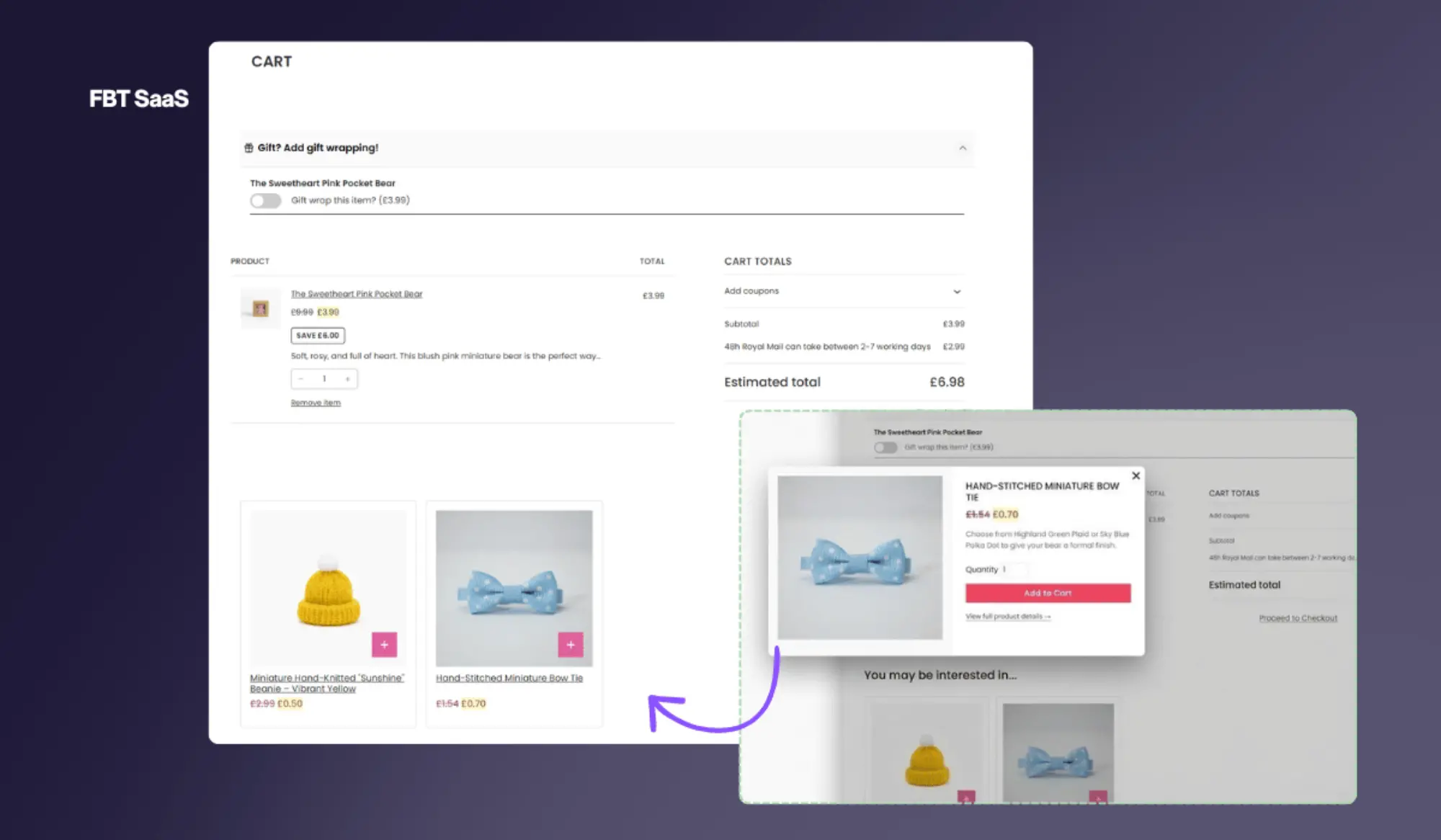
Display FBT recommendations on the cart page to catch customers at the highest intent moment before checkout.
How it works
The cart upsell widget analyses all products currently in the cart and surfaces recommended companions — automatically excluding any products already in the cart to avoid redundant suggestions.
Position options
Block-based cart support
If your theme uses a WooCommerce block-based cart page (Gutenberg), you can add the FBT Cart Upsell as a block in the WordPress block editor, or let the plugin automatically detect and render it using the registered block.
Fallback Recommendations
Not every product will have FP-Growth recommendations — particularly for new products or low-volume SKUs. Fallback recommendations ensure those products still show something useful.
By Category (recommended)
Shows the most popular products from the same category as the current product. Contextually relevant and the best fallback for most stores.
By Popularity (store bestsellers)
Shows your store's top-selling products regardless of category. Good for cross-category discovery.
Random
Selects products at random. Useful as a last resort but not recommended as a primary fallback strategy.
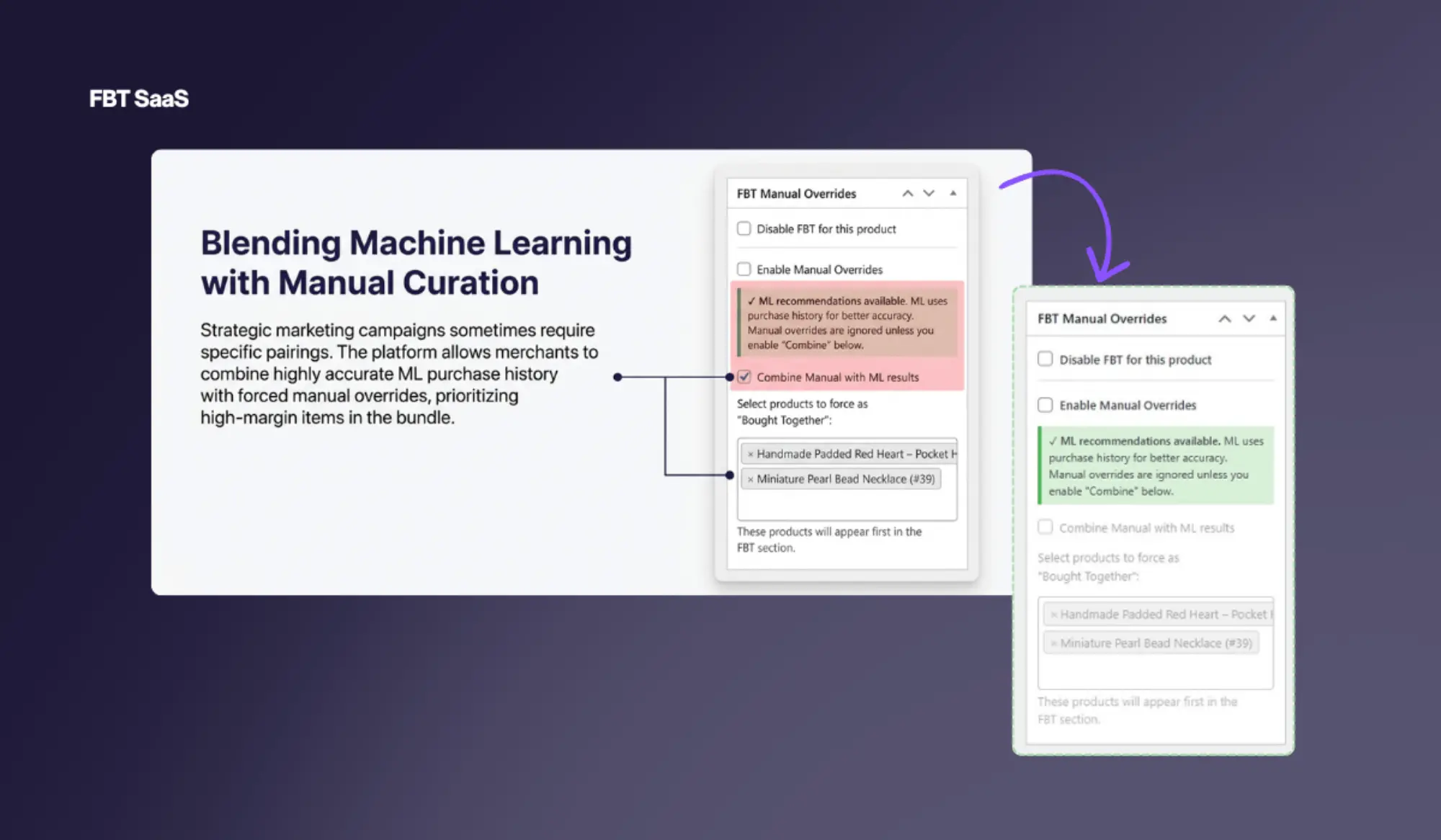
Manual Overrides
Pin specific product pairs that always appear as recommendations, regardless of algorithm output.
Go to WooCommerce → FBT SaaS → Manual Overrides to manage overrides.
When to use manual overrides
- New product launches with no order history yet — pin complementary products to give it a head start.
- Promotional campaigns — temporarily boost a specific product by pinning it to high-traffic pages.
- Curated bundles — if you know from experience that two products always go together (e.g. a product and its essential accessory), pin that relationship.
- Override an algorithm suggestion you believe is wrong for business reasons.
Analytics
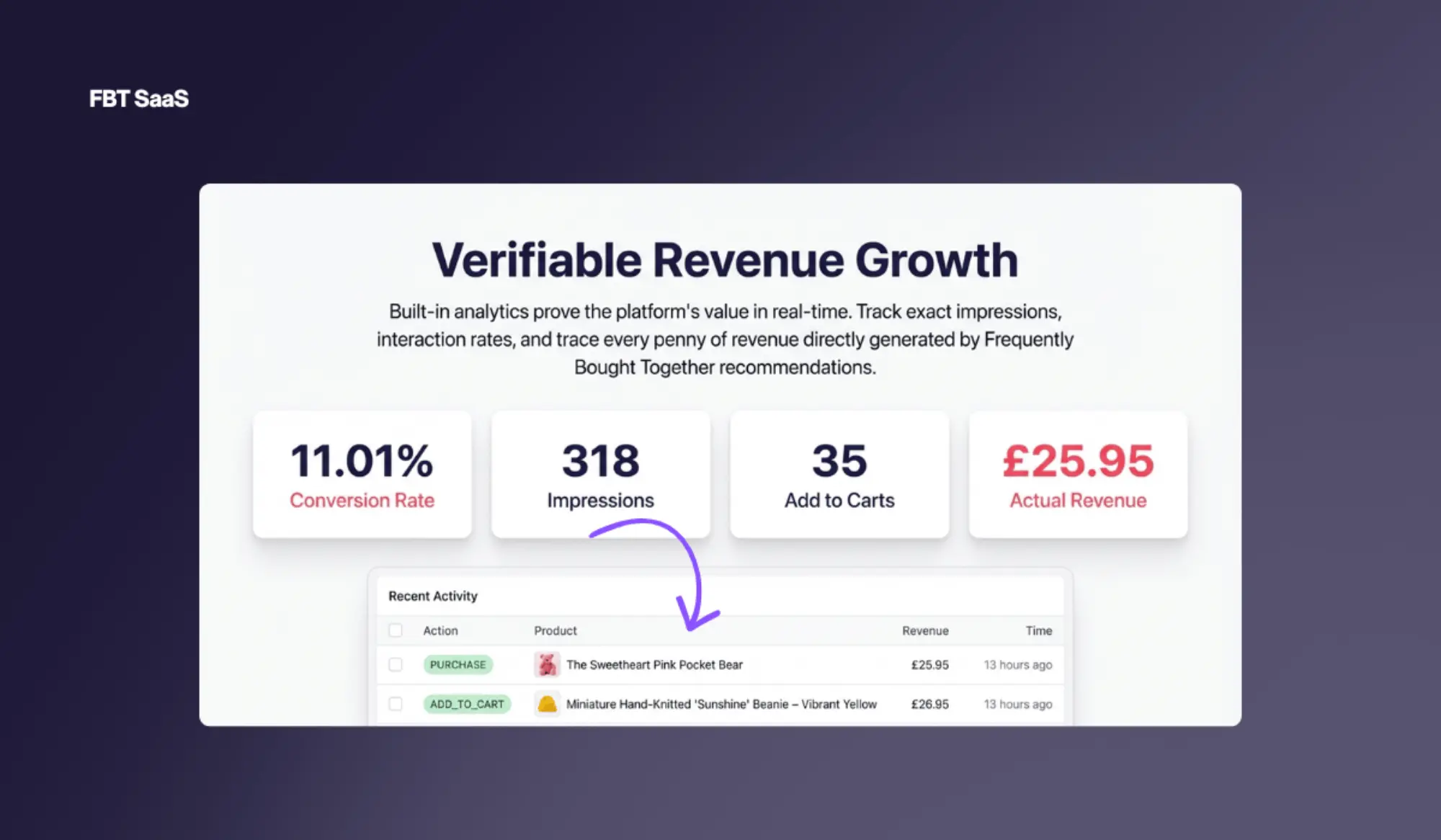
Track the real business impact of your FBT recommendations directly from the WordPress admin.
Metrics explained
Impressions
Total number of times an FBT recommendation widget was loaded and displayed to a visitor.
Clicks
Number of times a visitor clicked on a recommended product in the FBT widget.
Add to Carts
Number of times a recommended product was added to the cart directly via the FBT widget's Add to Cart button.
Purchases
Number of recommended products that were purchased in a completed order where the product was tracked as FBT-sourced.
Revenue
Total revenue directly attributed to products purchased via FBT recommendations.
Conversion Rate
Add to carts ÷ Impressions — the percentage of widget views that led to an add-to-cart action.
Date range filtering
Filter analytics data by: Today, Yesterday, Last 7 / 30 / 90 days, or a custom date range. Tracking data is stored in your WordPress database in the wp_fbt_tracking table.
Top product pairs (FBT SaaS Dashboard)
Your FBT SaaS dashboard shows a Top 10 Recommendations table with the most frequently co-purchased product pairs, their confidence and lift scores, and association strength labels — useful for understanding which product relationships are strongest in your store.
Recommendation Cache
FBT SaaS uses WordPress transients to cache recommendations on the frontend, ensuring fast page loads with zero database queries per visitor.
6-Hour TTL
Each product's recommendations are cached in a WordPress transient for 6 hours before naturally expiring.
Version-based Invalidation
A cache version key is incremented after every sync. All cached recommendations are immediately invalidated — no stale data shown post-sync.
Manual Clear
Go to Frontend Settings → Clear Recommendation Cache to force-invalidate all cached recommendations immediately.
Disconnect & Delete Data
You can fully remove FBT SaaS from your store at any time. All data deletion is immediate and irreversible.
Disconnect via the WordPress plugin
Go to WooCommerce → FBT SaaS and click the Disconnect button. This performs the following in sequence:
- Calls the FBT SaaS API to delete all store data (order history, recommendations, configuration) from our server.
- Deletes the WooCommerce REST API keys created by the plugin from your WordPress database.
- Clears the scheduled sync WP-Cron event.
- Removes all FBT SaaS plugin settings from your
wp_optionstable.
Delete store via the FBT SaaS dashboard
In your FBT SaaS dashboard, click the Delete button on a store card. This immediately and permanently deletes:
- All cached order transaction data
- All generated product recommendations
- All store configuration and API credentials
Troubleshooting
Common issues and how to resolve them.
No recommendations are showing on product pages
Work through this checklist:
- Is the plugin connected? Check the connection status on the main FBT SaaS admin page. It should say "Connected".
- Has a sync been run? If you've never run a sync, there are no recommendations to display. Run a manual sync first.
- Is the product page widget enabled? Go to Frontend Settings and confirm "Show on Product Page" is turned on.
- Does the product have co-purchase data? New products or low-volume SKUs may have no FP-Growth results. Enable fallback recommendations.
- Clear the recommendation cache. Go to Frontend Settings → Clear Recommendation Cache.
- Check the sync stats. The admin page shows how many recommendations were generated and saved after the last sync.
Connection failed — "Invalid token" error
- Confirm you copied the full token from the FBT SaaS dashboard (no trailing spaces).
- Make sure the FBT SaaS URL field is exactly
https://fbt.sidocode.com(no trailing slash). - Check that your store hasn't already been connected previously — each token is single-use. Generate a new token from the dashboard if needed.
The sync completed but zero recommendations were saved
This typically means your order history doesn't have enough co-purchase patterns to meet the algorithm thresholds.
- Try a longer time period (12 or 24 months instead of 6).
- Lower the Minimum Support threshold in Advanced Algorithm Settings (e.g. from
0.05to0.01). - Lower the Minimum Confidence threshold (e.g. to
0.05). - Ensure completed orders exist in WooCommerce — the algorithm only analyses orders with "Completed" or "Processing" status.
WooCommerce REST API error during sync
- Confirm your WooCommerce REST API is accessible at
your-store.com/wp-json/wc/v3/orders. - Check if a security plugin (Wordfence, iThemes Security, etc.) is blocking REST API requests from external IP addresses.
- If your store is behind basic HTTP authentication (staging environments), the WooCommerce API calls will fail. Whitelist the FBT SaaS server IP.
- Try disconnecting and reconnecting to regenerate the WooCommerce API keys.
Widget is showing but recommendations look outdated
Stale recommendations are a cache issue.
- Go to Frontend Settings → Clear Recommendation Cache.
- If you have a page caching plugin (WP Rocket, W3 Total Cache, LiteSpeed Cache), clear its cache too.
- If using a CDN (Cloudflare), purge the CDN cache for affected product pages.
Automatic sync isn't running on schedule
WP-Cron only fires when a visitor loads a page. On low-traffic sites, the cron job may be delayed.
- Verify the schedule is saved: check WooCommerce → FBT SaaS → Sync Schedule.
- Use a plugin like WP Crontrol to inspect if the
fbt_daily_sync_eventcron job is scheduled correctly. - For reliable scheduling, set up a real server cron:
*/5 * * * * wget -q -O - https://your-store.com/wp-cron.php?doing_wp_cron >/dev/null 2>&1
Frequently Asked Questions
Do I need a paid subscription?
A free account is required at fbt.sidocode.com. Please check the pricing page for current plan limits. The WordPress plugin itself is free and open-source (GPLv2).
How much order history do I need?
The FP-Growth algorithm works best with at least 200–300 completed orders. Stores with fewer may have limited coverage — enable fallback recommendations to fill the gaps. There is no hard minimum; results will simply be less comprehensive with fewer orders.
Will this slow down my store?
No. Recommendations are served from the WordPress transient cache (6-hour TTL) — zero database queries per visitor after the first warm request. Enable AJAX loading in Frontend Settings to ensure the widget never blocks your page's First Contentful Paint (FCP).
Is this GDPR compliant?
Yes. The plugin only sends product IDs, product names, and order IDs to the FBT SaaS service — never customer names, email addresses, billing addresses, or any personal data. Order data is automatically deleted from our servers after 24 months. See our Privacy Policy for full details.
Does it work with WooCommerce HPOS?
Yes. FBT SaaS declares compatibility with WooCommerce High-Performance Order Storage (HPOS) and has been tested with it enabled. Both classic and HPOS order storage are fully supported.
Does it work with block themes / Gutenberg?
Yes. The product page FBT widget works with both classic (shortcode-based) and block themes. The cart upsell has a dedicated block you can add in the Gutenberg editor, or it can render automatically via WooCommerce cart hooks depending on your configuration.
How often should I sync?
For most stores, a monthly sync (every 30 days) is sufficient. High-volume stores with rapidly changing inventory may benefit from a weekly sync. Configure automatic syncing under Sync Schedule settings.
Can I have multiple stores connected to one account?
Yes. You can add multiple stores to a single FBT SaaS account from the dashboard. Each store has its own connection token, API keys, recommendations, and sync schedule. Plan limits may apply to the number of stores per account — see the pricing page.
What happens if the FBT SaaS service is temporarily unavailable?
Your store continues to display cached recommendations from the last successful sync. The transient cache has a 6-hour TTL, so recommendations remain visible to visitors during any service outage. Once the service is restored, the next sync or cache refresh will pull fresh data.
Still have questions?
Check our Privacy Policy and Terms of Use, or get in touch with us directly.
Contact Support